Your AI coding agent, finally explained.
MyBuildy sits beside your AI coding agent’s window, watches what it just did, and tells you in plain English what happened and what to type next.
Free, source-available, and it runs on your own computer.
The Mac app is signed and notarized by Apple. Windows will warn you on first run because the installer isn't signed yet. We'll show you what to click.
v0.1.0 · Windows 272 MB · Mac 284 MB
Free forever · Windows 10 and 11 · macOS 14 and later · Your own AI key or a local model


- Source-available · Free to use
- Your key, your model
- No MyBuildy servers
- No account, no subscription
Who is Buildy?
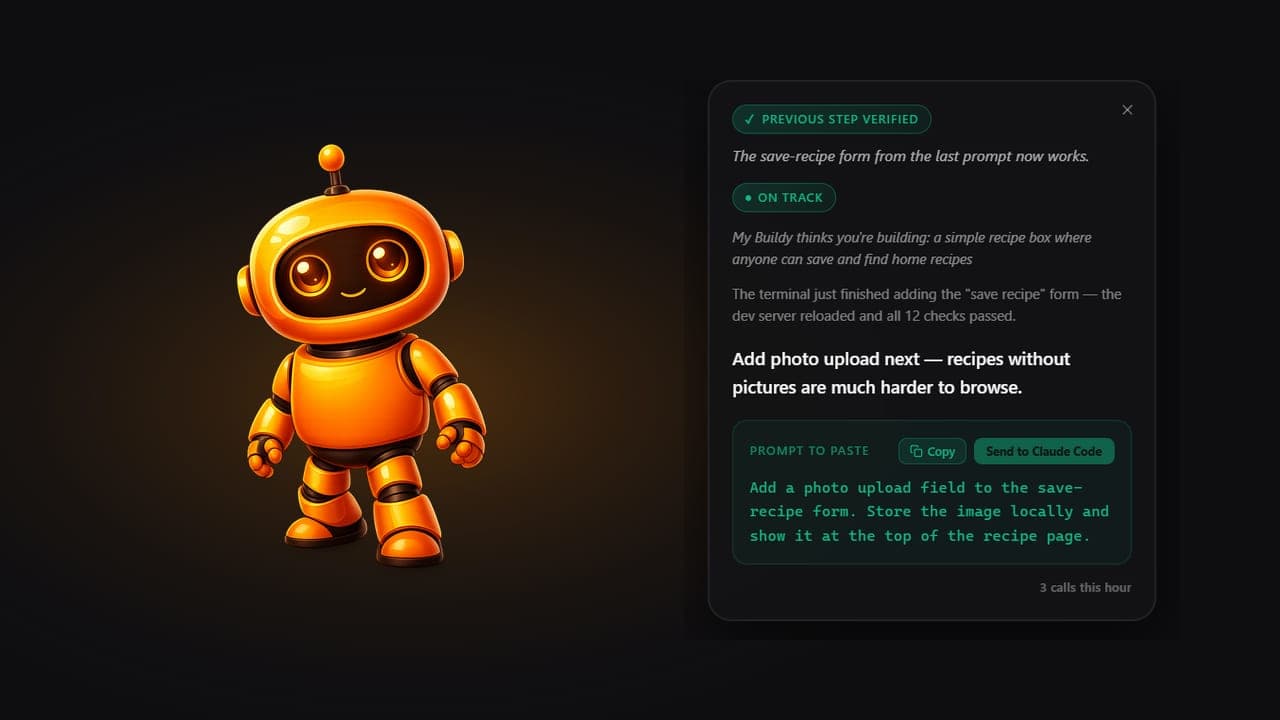
Buildy is a small orange robot who sits on top of your screen and watches one window: the one where your AI coding agent is working.
He reads what just happened and says it back to you in plain English. He tells you whether you are still heading toward what you asked for. He writes the next prompt for you and pastes it in when you click. You press Enter.
When the agent finishes something, he checks whether it actually worked. When a decision needs a human, he stops and asks you instead of guessing.
He remembers your project between sessions, so tomorrow he knows what you built today.
Why I built this

I meet a lot of non-technical people who are already using Claude Code.
They didn’t start there. They started in Lovable or Replit or Bolt, building in a browser and watching a preview update as they typed. It worked — until they needed something that lived outside that box: their own files, their own project, a real git history, their own machine, their own keys. That’s when they install a coding agent. They’re right to. That’s where the control is.
And that’s where the feedback disappears.
In the browser builder, something appears on screen and you know it worked. A coding agent tells you what it did in diffs, file paths and command output. Forty lines scroll past and you cannot tell whether it just shipped a feature or broke the project. So when it asks “Allow?”, you press Yes — not because you judged it safe, but because you have no way to judge at all. One CEO building dashboards with Claude Code admitted to googling every single command for his first week, just to be sure nothing would break. A developer writing about the same problem called it a design mismatch: asking non-programmers to answer programmer-level safety questions.
It isn’t that coding agents are too hard. It’s that they never tell you, in words you understand, what they just did.
Every tool built for that moment assumes you can read code. So I built the one that doesn’t.
Sukin Shetty
Solution Forge Labs, Bengaluru
Not just my experience: A CEO’s guide to Claude Code for non-technical people (opens in a new tab) · Why permission prompts don’t protect people who can’t read code (opens in a new tab) · Claude Code isn’t just for developers (opens in a new tab)
Watch it work
How it works
Step 1: Tell Buildy what you are building
One sentence: what you want, and what “done” looks like.
Step 2: Point him at your coding agent
Click the robot, pick the window your coding agent is running in.
Step 3: Read what just happened
Plain English every time the agent finishes a step, plus whether you are still on track.
Step 4: Paste the next prompt
He writes it, you read it, one click pastes it into your coding agent’s window. You press Enter.
What he does for you
Watches your screen, not your code
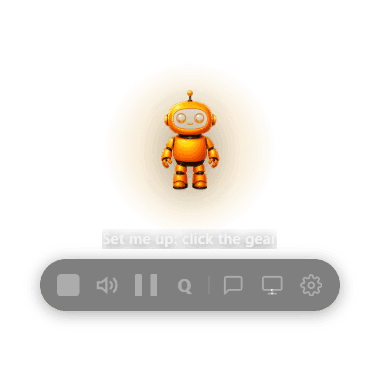
You pick one window. He reads what it shows and never opens your files.
- Watches your screen, not your code. You pick one window. He reads what it shows and never opens your files.
- Plain English, every time. Every step the agent takes, explained without jargon.
- The next prompt, ready to paste. He writes it, you read it, one click pastes it into your coding agent’s window. You press Enter.
- Checks that it actually worked. When the agent says it is done, he looks for proof before moving on.
- Stops when a decision needs you. No guessing on the choices that are yours to make. He asks.
- Remembers your project. Tomorrow he knows what you built today. Saved on your computer; the relevant parts go to your AI provider with each check.
- Your key, your model. Anthropic, OpenAI, Google, OpenRouter, or a local model. You choose.
- Speaks, so you can keep reading. He can read his explanation aloud while your eyes stay on your coding agent.
Works with
Coding agents
Tested with Claude Code. Other coding agents that run in a terminal, such as Codex CLI, are experimental: watching and explaining work, one-click paste is untested.
AI providers
Anthropic, OpenAI or OpenRouter with your own API key. Google Gemini works too but is not yet tested. Or a local model on your own computer through Ollama or LM Studio.
Where your data goes
Screenshots of the one window you pick, and the relevant parts of your project’s memory, go to the AI provider you chose, with your own key. Nothing goes anywhere else. With a local model, everything stays on your computer. (Optional: if you add your own ElevenLabs key for voice, the spoken text and your spoken questions go to ElevenLabs.)
What it doesn’t do yet
- MyBuildy runs the loop. You approve each step; he never sends anything on his own.
- Four of the six loop-engineering blocks are built. Scheduled runs and tool connectors are on the roadmap.
- Claude Code is the coding agent MyBuildy is tested with. Other terminal agents are experimental: watching works, one-click paste is untested.
- Windows is tested most. macOS support is brand new — tell me what breaks.
- The Windows installer is not code-signed yet, so Windows SmartScreen warns you the first time: click More info, then Run anyway. The Mac app is signed and notarized by Apple.
Get started
Before you start, you need two things: a coding agent such as Claude Code already installed, and an API key from one AI provider, or a local model (see below).
Prefer a local model? Install Ollama or LM Studio and download a model that can read images. No key needed: in the first-run setup, choose Use a local model instead, and MyBuildy finds the app on your computer and lists your models.
Free for anyone to use, including for work. You just can’t resell it.
v0.1.0 · Windows 272 MB · Mac 284 MB
- Download the installer for your computer.
- Open it. On Windows, SmartScreen warns you because the installer is not code-signed yet: click More info, then Run anyway. On a Mac, drag MyBuildy into Applications and open it from there.
- Follow the short setup: paste an API key from your AI provider (or choose Use a local model instead) and pick a model.
- Tell Buildy what you are building, then point him at your AI coding agent’s window.